Getting Started with Delta Task Automation
Streamline your daily workflow with intelligent task orchestration. Follow this step-by-step walkthrough to configure task parameters, schedule executions, and manage process instances efficiently.
Step-by-Step Task Configuration
Follow this practical guide to set up your first automated task in Delta from scratch.
Initiate Task Creation
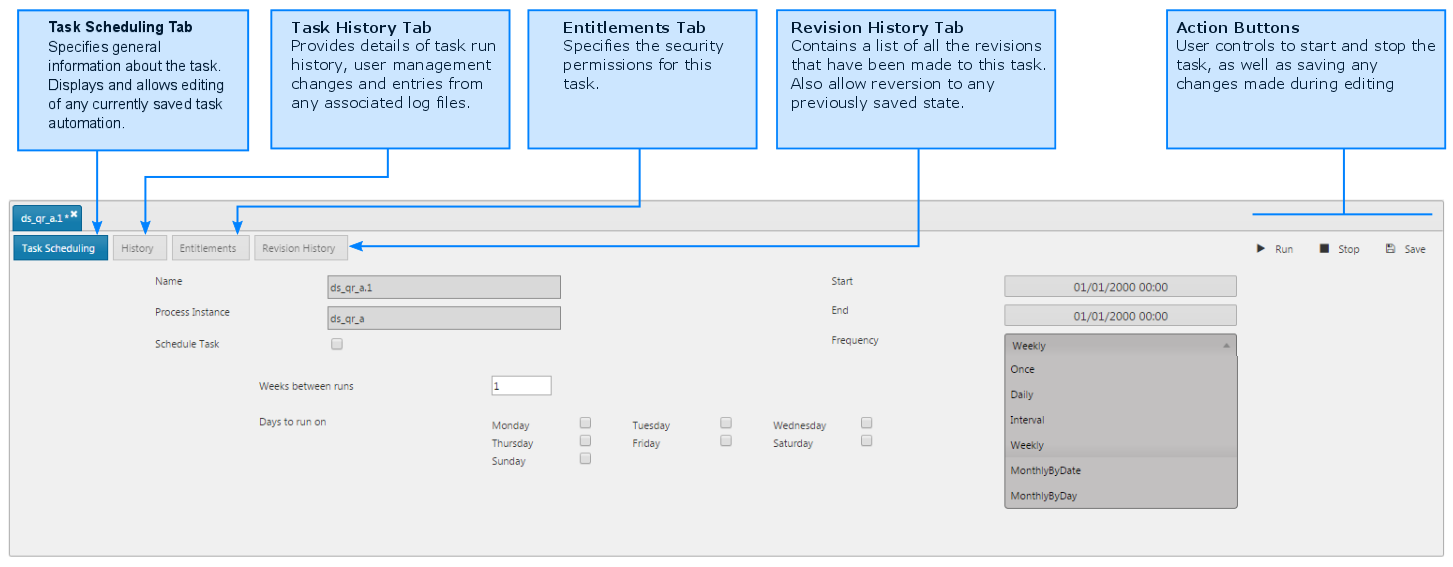
Open the Delta application and navigate to the Task Scheduling tab to specify general task information, naming conventions, and process instance mappings.
Configure Frequencies
Select your desired run frequency (Weekly, Daily, Interval) and define active days or weeks between runs to match your exact operational schedule.
Save and Run
Use the top action buttons to save your configurations securely and execute your automated task immediately or place it into scheduled rotation.
Advanced Task Management & Controls
Master the right-click context menu and operational controls for existing tasks and active instances.
Quick Operational Control
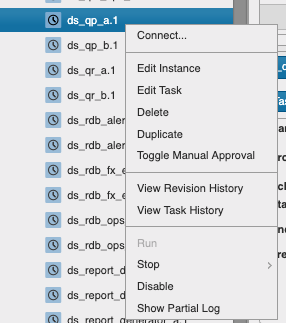
Once tasks are established, Delta provides instant access to management tools through intuitive context menus. You can quickly review execution history, edit task instances, or toggle manual approvals without leaving your workspace.
- Edit instances and task configurations instantly
- View detailed revision and execution history logs
- Toggle manual approvals and stop/run processes on demand